
Why you should use rsync instead of scp in deployments
A practical performance comparison of deployment file transfer methods and why rsync usually outperforms scp.
· tips-and-tricks · 13 minutes
Introduction
Many of you can probably guess the point of this article just by reading the title, but it’s still useful to have a clear reminder backed by some real-world measurements. This will be a practical, straight-to-the-point article.
The problem with scp in deployments
When copying the dist folder to a deployment server, the first instinct is usually to clear the existing folder and upload the new one using scp. While this works, you can achieve significant long-term improvements by replacing a few lines and using rsync instead.
The important facts to keep in mind are:
- This is a repeated operation.
- The server will (almost) always already contain a previous copy of the
distfolder. - Not all files in the build artifacts change on every build, many remain exactly the same and can be reused.
Clearing the dist folder and scp the entire content each time simply ignores the facts above. scp it is not optimized for repeated copying where most files remain unchanged.
Bash deployment scripts and Github Actions deployment workflows run frequently, so any unnecessary time or performance overhead accumulates and wastes energy and resources. It’s important to optimize as much as possible, especially when it requires very little effort.
Why rsync is faster
rsync is designed specifically for efficient file synchronization. Instead of copying everything every time, it compares the source and destination and transfers only the files that have changed.
This dramatically reduces the amount of data that needs to be sent during deployments. In most cases, only a small subset of files changes between builds, which means rsync can complete the transfer much faster than scp.
Another advantage is that rsync can resume partially transferred files and optionally compress data during transfer. These features make it especially well suited for automated deployment workflows where speed and reliability are important.
rsync flags for deployments
A typical rsync command used in deployments looks like this:
rsync -az --delete ./dist/ user@server:/var/www/siteSome commonly used flags include:
-a(archive) preserves permissions, timestamps, and recursively copies files.-zenables compression during transfer, which reduces network usage.--deleteremoves files on the destination that no longer exist in the source, keeping the deployment directory in sync.--partialallows interrupted transfers to resume instead of restarting from scratch.
Together, these options make rsync a powerful and efficient tool for copying build artifacts during automated deployments.
A complete list of options is available in the command’s manual: https://download.samba.org/pub/rsync/rsync.1#OPTION_SUMMARY.
Example: deployment with scp
For both scp and rsync, we will consider two examples: a Bash script used to deploy from a local development environment, and a Github Actions workflow. These represent two common approaches to deployments.
For the sake of context and completeness, the full scripts are included so you can reuse them or run your own tests and performance comparisons.
Bash script
Naturally, the only truly important part is the scp line. However, let’s briefly review the rest of the script, since it demonstrates what we would typically use in a real-world scenario.
The first assumption is that we have a local dist folder containing the compiled application built with a local .env file, and an Nginx web server with a webroot directory on a remote server. Our Bash script accepts three input arguments: LOCAL_PATH, REMOTE_PATH, and REMOTE_HOST, which we validate before performing the copy.
Next, we establish an initial ssh connection to delete the existing application artifacts from the previous deployment. During this step, we also log some information by printing the file list and the total number of files in the Nginx webroot before and after removing the old files.
Note 1: When removing old artifacts, we delete the contents of the Nginx webroot directory, not the webroot directory itself. Removing the directory could disrupt the current Nginx session and would require restarting the Nginx process or container.
Note 2: Below the scp line, I also include a tar ... | ssh command example that compresses the artifacts before piping them through the SSH connection. In theory, this should provide performance similar to rsync in scenarios where we always completely clear the previous deployment. I will include it in the measurements so we can see how it performs.
# Navigate to ~/traefik-proxy/apps/nmc-nginx-with-volume/websitecd $REMOTE_PATH
# Clear the contents, not the `/website` path segmentrm -rf *
https://github.com/nemanjam/nemanjam.github.io/blob/main/scripts/deploy-nginx.sh
#!/bin/bash
LOCAL_PATH="./dist"# REMOTE_PATH="~/traefik-proxy/apps/nmc-nginx-with-volume/website"# REMOTE_HOST="arm1"
REMOTE_PATH=$1REMOTE_HOST=$2
# Check if all arguments are providedif [[ -z "$REMOTE_PATH" || -z "$REMOTE_HOST" ]]; then  echo "Incorrect args, usage: $0 <remote_path> <remote_host>"  exit 1fi
# Navigate to the website folder on the remote server and clear contents of the website folderssh $REMOTE_HOST "cd $REMOTE_PATH && \                  echo 'Listing files before clearing:' && \                  echo 'List before clearing:' && \                  ls && \                  echo 'Count before clearing:' && \                  ls -l | grep -v ^l | wc -l && \
                  # Only possible to skip with rsync --delete
                  echo 'Clearing contents of the folder...' && \                  rm -rf * && \                  echo 'List after clearing:' && \                  ls && \                  echo 'Count after clearing:' && \                  find . -type f | wc -l && \
                  echo 'Copying new contents...'"
# Copy new contents, 320 MB# Using scp -rq, slowest, not resumablescp -rq $LOCAL_PATH/* $REMOTE_HOST:$REMOTE_PATH
# Using tar, fast for cleaned dir# tar cf - -C "$LOCAL_PATH" . | ssh "$REMOTE_HOST" "tar xvf - -C $REMOTE_PATH" >/dev/null 2>&1
Then we can call the Bash script like this by passing REMOTE_PATH and REMOTE_HOST arguments:
{  "scripts": {    // ...
    "deploy:nginx:rpi": "bash scripts/deploy-nginx.sh '~/traefik-proxy/apps/nmc-nginx-with-volume/website' rpi",
    // ...  }}
Github Actions
The Github Actions workflow provides even more context. It includes environment variables required by the application, sets up Node.js and pnpm, and builds the app. The rest is identical to the Bash script above: we use the appleboy/ssh-action action to establish an SSH connection and clear the previous deployment, and the appleboy/scp-action action to copy the built dist/ folder to the remote server using scp.
In the scp step, most arguments are self-explanatory, but one worth emphasizing is strip_components: 1. This prevents creating an additional dist/ path segment inside the Nginx webroot. In other words, we want the files copied to nmc-nginx-with-volume/website/*, not to nmc-nginx-with-volume/website/dist/*.
name: Deploy Nginx scp
on:  push:    branches:      - 'main'    tags:      - 'v[0-9]+.[0-9]+.[0-9]+'  pull_request:    branches:      - 'disabled-main'  workflow_dispatch:
env:  SITE_URL: 'https://nemanjamitic.com'  PLAUSIBLE_SCRIPT_URL: 'https://plausible.arm1.nemanjamitic.com/js/script.js'  PLAUSIBLE_DOMAIN: 'nemanjamitic.com'
jobs:  deploy:    runs-on: ubuntu-latest
    steps:      - name: Checkout code        uses: actions/checkout@v4        with:          fetch-depth: 1
      - name: Print commit id, message and tag        run: |          git show -s --format='%h %s'          echo "github.ref -> {{ github.ref }}"
      - name: Set up Node.js and pnpm        uses: actions/setup-node@v4        with:          node-version: 24.13.0          registry-url: 'https://registry.npmjs.org'
      - name: Install pnpm        uses: pnpm/action-setup@v4        with:          version: 10.30.1
      - name: Install dependencies        run: pnpm install --frozen-lockfile
      - name: Build nemanjamiticcom        run: pnpm build
      - name: Clean up website dir        uses: appleboy/ssh-action@master        with:          host: ${{ secrets.REMOTE_HOST }}          username: ${{ secrets.REMOTE_USERNAME }}          key: ${{ secrets.REMOTE_KEY_ED25519 }}          port: ${{ secrets.REMOTE_PORT }}          script_stop: true          script: |            cd /home/ubuntu/traefik-proxy/apps/nmc-nginx-with-volume/website            echo "Content before deletion: $(pwd)"            ls -la            rm -rf ./*            echo "Content after deletion: $(pwd)"            ls -la
      - name: Copy dist folder to remote host        uses: appleboy/scp-action@v0.1.7        with:          host: ${{ secrets.REMOTE_HOST }}          username: ${{ secrets.REMOTE_USERNAME }}          key: ${{ secrets.REMOTE_KEY_ED25519 }}          port: ${{ secrets.REMOTE_PORT }}          source: 'dist/'          target: '/home/ubuntu/traefik-proxy/apps/nmc-nginx-with-volume/website'          # remove /dist path segment          strip_components: 1
Example: deployment with rsync
Now we modify the existing Bash script and Github Actions workflow by replacing scp with rsync, while keeping the rest of the code identical.
Bash script
Most of the script remains the same. However, since we use rsync --delete, we can omit the step that deletes the previous deployment. In fact, the initial SSH call is no longer necessary, but we will keep it for debugging and transparency.
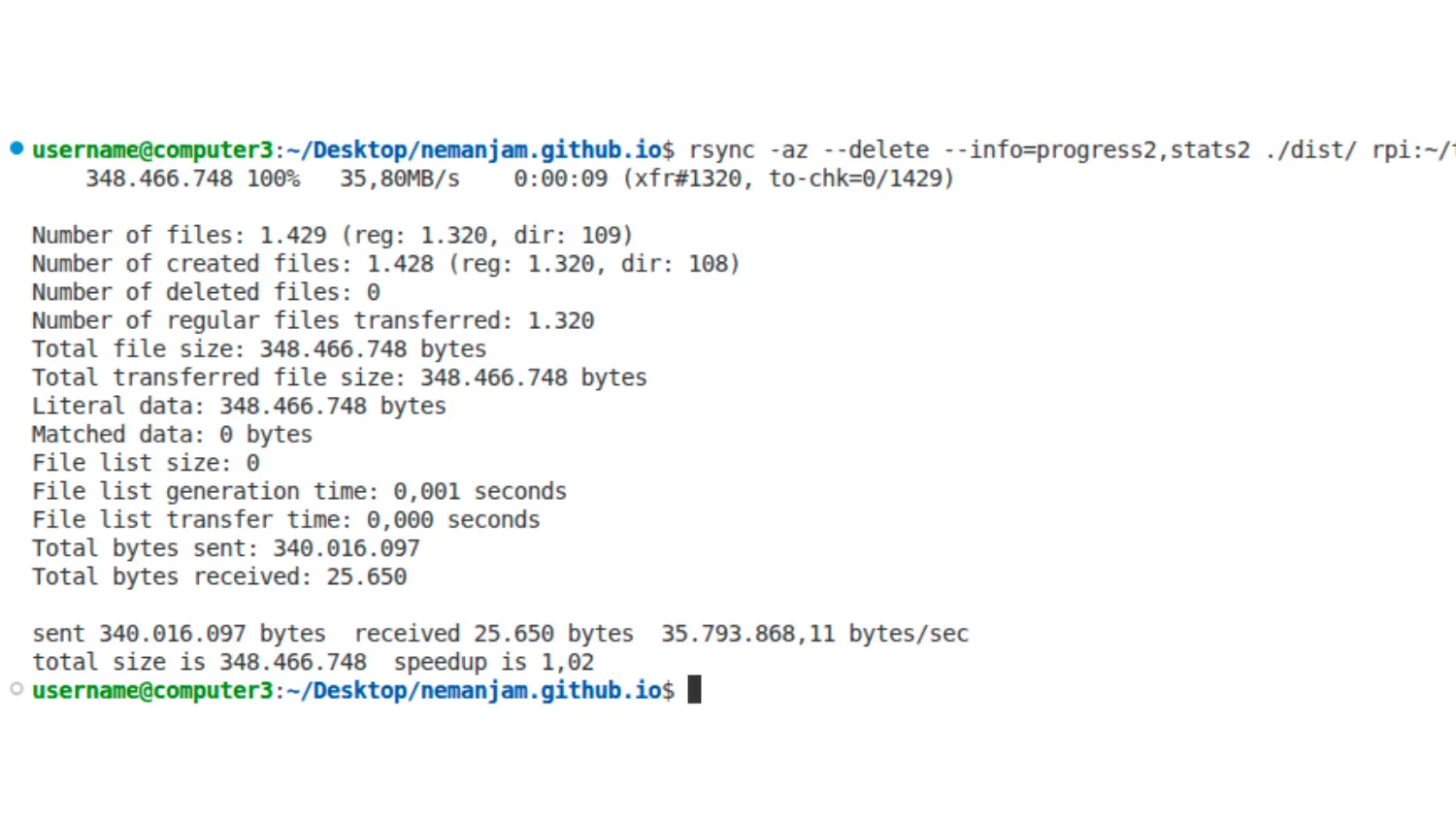
Another option worth mentioning is --info=progress2, which is very convenient in a live terminal session because it displays the current transfer progress in a concise way. This provides reassurance that the network connection is active and the transfer is progressing.
https://github.com/nemanjam/nemanjam.github.io/blob/main/scripts/deploy-nginx.sh
#!/bin/bash
LOCAL_PATH="./dist"# REMOTE_PATH="~/traefik-proxy/apps/nmc-nginx-with-volume/website"# REMOTE_HOST="arm1"
REMOTE_PATH=$1REMOTE_HOST=$2
# Check if all arguments are providedif [[ -z "$REMOTE_PATH" || -z "$REMOTE_HOST" ]]; then  echo "Incorrect args, usage: $0 <remote_path> <remote_host>"  exit 1fi
# Navigate to the website folder on the remote server and clear contents of the website folderssh $REMOTE_HOST "cd $REMOTE_PATH && \                  echo 'Listing files before clearing:' && \                  echo 'List before clearing:' && \                  ls && \                  echo 'Count before clearing:' && \                  ls -l | grep -v ^l | wc -l && \
                  # Only possible to skip with rsync --delete
                  # echo 'Clearing contents of the folder...' && \                  # rm -rf * && \                  # echo 'List after clearing:' && \                  # ls && \                  # echo 'Count after clearing:' && \                  # find . -type f | wc -l && \
                  echo 'Copying new contents...'"
# Using rsync, fastest, resumable, deletes without clearing, lot faster with reusing unchanged files (--delete)rsync -az --delete --info=stats2,progress2 $LOCAL_PATH/ $REMOTE_HOST:$REMOTE_PATH
# List all files after copyingssh $REMOTE_HOST "cd $REMOTE_PATH && \                  echo 'List after copying:' && \                  ls && \                  echo 'Count after copying:' && \                  find . -type f | wc -l"
Github Actions
The workflow implements the same logic using the Burnett01/rsync-deployments action. Since this is not a live terminal session, --info=stats2 is sufficient for logging.
Unless you are actively debugging, avoid using the rsync -v flag, as overly verbose logs reduce readability.
name: Deploy Nginx rsync
on:  push:    branches:      - 'main'    tags:      - 'v[0-9]+.[0-9]+.[0-9]+'  pull_request:    branches:      - 'disabled-main'  workflow_dispatch:
env:  SITE_URL: 'https://nemanjamitic.com'  PLAUSIBLE_SCRIPT_URL: 'https://plausible.arm1.nemanjamitic.com/js/script.js'  PLAUSIBLE_DOMAIN: 'nemanjamitic.com'
jobs:  deploy:    runs-on: ubuntu-latest
    steps:      - name: Checkout code        uses: actions/checkout@v4        with:          fetch-depth: 1
      - name: Print commit id, message and tag        run: |          git show -s --format='%h %s'          echo "github.ref -> ${{ github.ref }}"
      - name: Set up Node.js and pnpm        uses: actions/setup-node@v4        with:          node-version: 24.13.0          registry-url: 'https://registry.npmjs.org'
      - name: Install pnpm        uses: pnpm/action-setup@v4        with:          version: 10.30.1
      - name: Install dependencies        run: pnpm install --frozen-lockfile
      - name: Build nemanjamiticcom        run: pnpm build
      - name: Deploy dist via rsync        uses: burnett01/rsync-deployments@v8        with:          switches: -az --delete --info=stats2          path: dist/          remote_path: /home/ubuntu/traefik-proxy/apps/nmc-nginx-with-volume/website/          remote_host: ${{ secrets.REMOTE_HOST }}          remote_user: ${{ secrets.REMOTE_USERNAME }}          remote_port: ${{ secrets.REMOTE_PORT }}          remote_key: ${{ secrets.REMOTE_KEY_ED25519 }}
Performance comparison
For Bash script measurements, I used my local network to deploy to a Raspberry Pi server. I used 1 Gbps Ethernet and 5 GHz, 433 Mbps WiFi 5. For Github Actions workflows, I used the standard Github runners available on the free plan. For each case, I took a few measurements to eliminate random anomalies. I didn’t aim for statistical accuracy.
For deployment, I used this very static Astro website you are currently reading. Its build artifacts consist of 1320 files totaling 347 MB (it contains a number of images).
Results discussion
Let’s comment on the results, starting from the worst option:
scphas the worst performance in every case (Ethernet (9.6 s), WiFi (188 s), Github Actions (43 s)). The WiFi result is especially bad (188 seconds). I don’t have an exact explanation, but the WiFi connection probably doesn’t handle a large number of files well.tar + SSHhas decent performance (Ethernet (4.1 s), WiFi (16.6 s), Github Actions (32 s)), considering that it clears the destination and transfers all files every time. Interestingly, on Ethernet it even performs 2× better (4.1 s) thanrsync(with synchronization enabled) (8.8 s). I explain this by the fact that hashing and comparing files inrsynccan cost more than the file transfer itself on a stable, wired Ethernet connection.rsync (cleared)(delete the destination and transfer everything each time) is on par withtar + SSH(Ethernet (4.6 s), WiFi (15.1 s), Github Actions (29 s)). This makes sense because those two methods are basically doing the same thing.rsync(synchronization enabled) overall has the best performance (Ethernet (8.8 s), WiFi (14.6 s), Github Actions (10 s)), with the exception of Ethernet, which I already explained (hashing and file comparison can cost more than network transfer). The Github Actions result (10 s) is especially important, since CI is the most common way to deploy apps in practice. It also creates around 14× less network traffic (24 MB compared to 347 MB).
Meaning, they rank in the following order (from best to worst):
rsyncrsync (cleared)andtar + SSH(equally fast)scp(worst in every scenario)
Key takeaway: In Github Actions, rsync saves 43 - 10 = 33 seconds on each run compared to scp, which is a significant improvement.
Deployment process and Amdahl’s law
Transferring files is just one of the steps within the deployment process. It is not even the most dominant one. If we look at the times for each step in the Github Actions default__deploy-nginx-rsync.yml workflow, we can see the following:
Set up job 2sBuild burnett01/rsync-deployments@v8 9sCheckout code 18sPrint commit id, message and tag 0sSet up Node.js and pnpm 5sInstall pnpm 1sInstall dependencies 6sBuild nemanjamiticcom 2m 25sDeploy dist via rsync 10sPost Install pnpm 0sPost Set up Node.js and pnpm 0sPost Checkout code 0sComplete job 0sDeploy dist via rsync is third on the list with 10 seconds. Checkout code is second with 18 seconds. That step already has the fetch-depth: 1 optimization; the repository simply has a large file size. The app build step Build nemanjamiticcom obviously takes the most time and has the greatest potential for optimizing performance and saving time. Although obvious, this fact is also formally articulated by Amdahl’s law, which states:
The overall performance improvement gained by optimizing a single part of a system is limited by the fraction of time that the improved part is actually used.
However, the app’s build step is also the most complex to optimize. It spans the app code implementation, build configuration, and caching on both Vite and Github Actions levels. Naturally, it is largely app-dependent and more challenging to generalize.
If I look at the Astro build log, I can see this:
/_astro/snow1.DTiId6LS_Z2cIRXL.webp (reused cache entry) (+2ms) (1044/1101)This image, snow1.DTiId6LS_Z2cIRXL.webp, has the exact same name in each build and is cached and reused, which drastically improves performance.
On the other hand, in the build log I can also see:
λ src/pages/api/open-graph/[...route].png.ts ├─ /api/open-graph/blog/2026-01-03-nextjs-server-actions-fastapi-openapi.png (+1.42s)This is an Open Graph image generated using a Satori HTML template, and it is regenerated from scratch on each build. I can see two problems with this:
- Generating gradient colors in
src/utils/gradients.tsusesMath.random(), which makes the generation non-deterministic. Instead, the gradient should use a pseudo-random, deterministic approach, for example by hashing the page title string. - The image
snow1.DTiId6LS_Z2cIRXL.webpis originally placed inside thesrcdirectory, which registers it as an Astro asset. As a result, Astro handles compression, naming, and caching during the build process. This is not the case with thesrc/pages/api/open-graph/[...route].png.tsstatic route and the Satori template; additional configuration would be required to enable caching.
Anyway, that is a separate topic for a completely different article. In this one, we focus on the file transfer step, which can be optimized with minimal effort - simply by replacing a single command.
Completed code
- Repository: https://github.com/nemanjam/nemanjam.github.io
The relevant files:
git clone git@github.com:nemanjam/nemanjam.github.io.git
# Bashscripts/deploy-nginx.sh
# Github Actions.github/workflows/default__deploy-nginx-scp.yml.github/workflows/default__deploy-nginx-rsync.yml
Conclusion
You might think, “This is a pretty long and verbose article for something that could be explained in two sentences” and you would probably be right. However, besides the main rsync vs scp point, I wanted to provide a drop-in script and workflow that you can reuse with minimal changes, just adjust the environment variables, build command, and deployment paths.
Additionally, real-world measurements help provide a realistic sense of how significant the performance improvements can be.
What methods do you use to optimize the deployment process in your projects? Let me know in the comments.
References
- Rsync repository https://github.com/RsyncProject/rsync
- Rsync manual, options https://download.samba.org/pub/rsync/rsync.1#OPTION_SUMMARY
- Rsync Github Action https://github.com/Burnett01/rsync-deployments
- SSH Github Action https://github.com/appleboy/ssh-action
- SCP Github Action https://github.com/appleboy/scp-action
- Amdahl’s law https://en.wikipedia.org/wiki/Amdahl%27s_law
More posts
-
Runtime environment variables in Next.js - build reusable Docker images
Learn how to configure Next.js with runtime environment variables and build Docker images you can reuse across multiple environments.
-

Build a random image component with Astro and React
Build a random image component to make your hero image more interactive and interesting.
-
Next.js server actions with FastAPI backend and OpenAPI client
Connect Next.js to a FastAPI backend while preserving a modern React workflow with server actions and server components.